During the session
Watch the room, take control, record, and resize mid-session.
Monitor the class
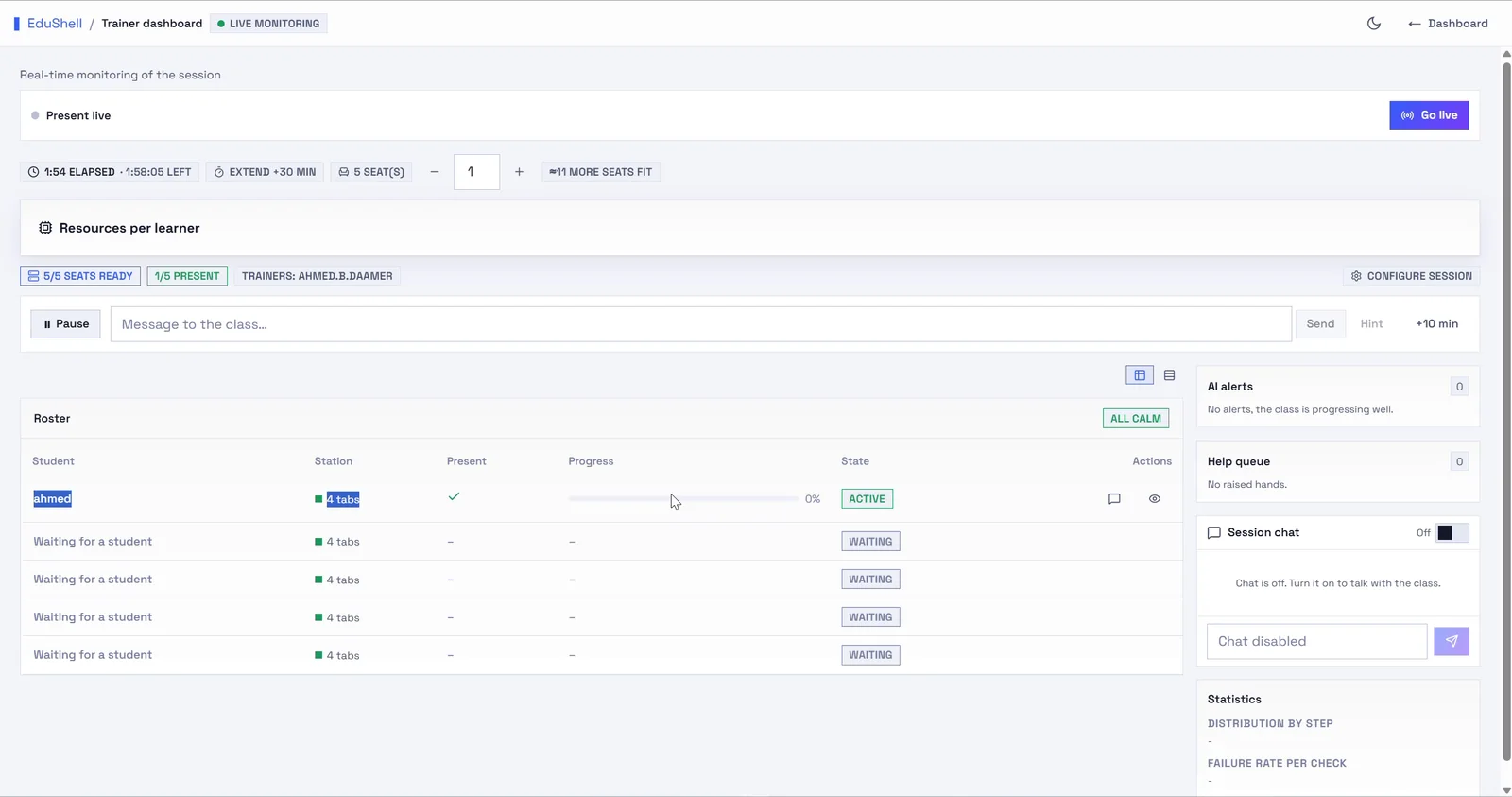
The live monitoring view is your cockpit. For every seat you see presence, how far the learner has progressed step by step, and their state (active, waiting, struggling). EduShell watches for learners who are stuck and raises an AI alert before they even ask, so you can reach the right person first.
A message box lets you talk to the whole class at once, and the roster reorders itself to float whoever needs you to the top.
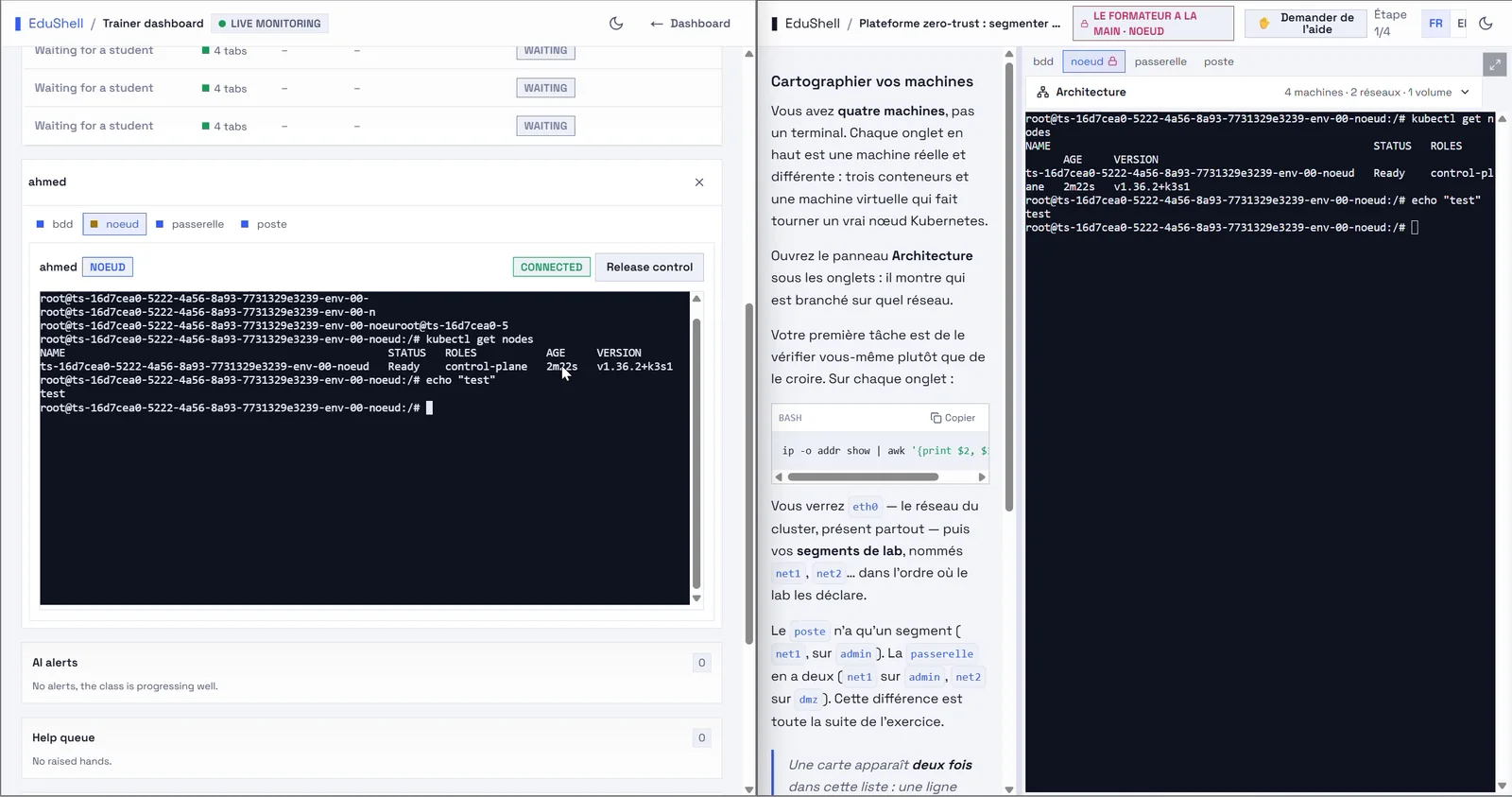
Help a learner: take control, hint, chat, raise hand
From the roster you have several ways to help:
- Take control: open a learner's terminal and drive it yourself to unblock them, then release control back.
- Send a hint: push a targeted hint to one learner without giving away the answer.
- Chat the class: send a message every learner sees, useful for a correction that affects everyone.
- Raise hand: learners can raise their hand and appear in the help queue, so nobody is missed.
Everything happens in the browser, in real time, without the learner sharing their screen through a third-party tool.
Record a session
Any session can record learners' terminals for later replay. Turn it on in Slot & settings · Advanced · Recording: Off, On (the learner is notified) or Required (recording is enforced, the learner must consent to enter). What is captured: the terminal output, as a faithful replay (scrollback, timing). Where to find them: the session's Recordings tab lists one recording per learner; expand one for the built-in player (play, pause, seek, speed). Check and alert markers appear as clickable points to jump to the right moment.
Recording is off by default. Once active, the learner sees a red REC indicator in their lab; in Required mode they must accept recording before entering. Recordings are stored in Europe.
Resize an environment mid-session
If a lab turns out to need more CPU or memory than planned, you can change the resources of the running seats from the monitoring view, without restarting the session. EduShell admits the new size against available capacity, then applies it. Size up when a workload is heavy, or down to fit more learners.
A resize is admitted against real capacity: if the box cannot fit the larger size for every seat, EduShell tells you before applying it, rather than half-applying it and leaving some learners short.